|

منصة مدرستي تسجيل الدخول: Complete Login Guide for Students, Teachers & Parents
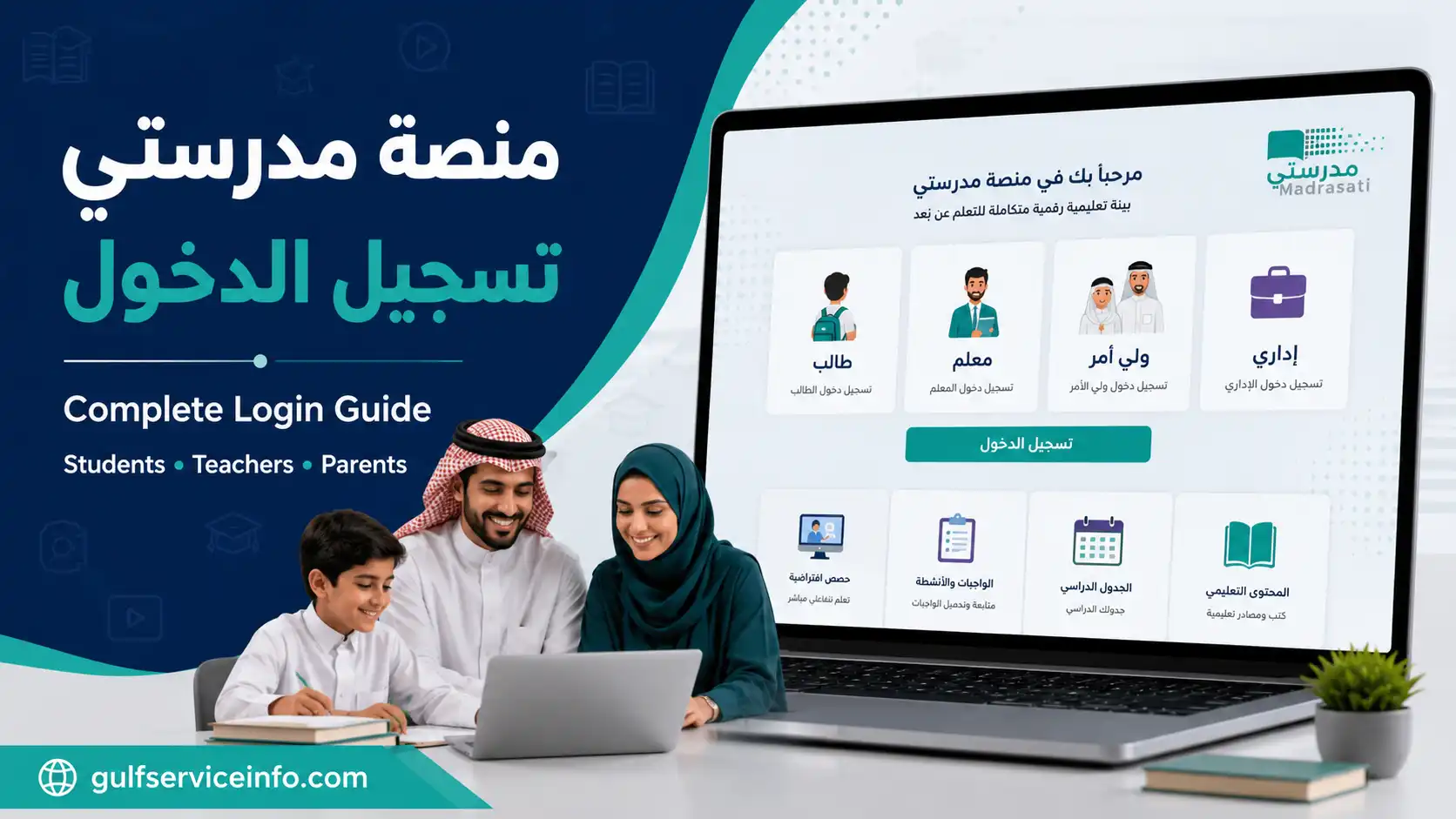
منصة مدرستي تسجيل الدخول guide for students, teachers, and parents in Saudi Arabia.

Getting into the Madrasati learning platform is straightforward once you know which sign-in method applies to your account. Students, teachers and parents all use the platform, but their access routes and available educational services can differ.

منصة مدرستي تسجيل الدخول connects Saudi Arabia’s educational community with a range of online learning services provided through the Ministry of Education. Students can access their lessons and homework, teachers can organise educational activities, and parents can follow their children’s academic progress.

Before attempting to sign in, it is worth identifying your account type and preparing the correct login credentials. Using the wrong authentication method can lead to unnecessary login problems.

This article covers the official Madrasati portal, account access for different users, student registration details and essential security precautions.

Explore GulfServiceInfo for more step-by-step guides on government services, online portals, visa procedures, and essential services across the Gulf region.

What Is منصة مدرستي?

Madrasati, known in Arabic as منصة مدرستي, is an electronic education platform developed under Saudi Arabia’s Ministry of Education. It brings together digital learning resources and school-related services in one online environment.

The platform is designed to support everyday educational activities rather than simply provide a page for entering usernames and passwords.

Depending on the permissions associated with an account, users can access services such as:

  • Online courses and learning resources: Explore digital textbooks, educational materials and subject-specific content.
  • Homework management: Check assignments, understand submission requirements and monitor assigned activities.
  • Lesson schedules: View school timetables, including scheduled subjects and classes.
  • Virtual learning: Participate in online lessons through the supported classroom services.
  • Teacher communication: Use available educational communication tools to contact teachers and discuss learning activities.
  • Academic information: Review available attendance details, student reports and progress information.
  • Teaching facilities: Access tools for organising lessons and managing educational activities.

Parents also have access to relevant educational services that help them stay informed about their children’s school activities.

For information about the platform and its services, refer to the official Saudi Ministry of Education website.

منصة مدرستي تسجيل الدخول – Official Login Portal

Always begin with the Ministry of Education’s official website or Madrasati portal. Third-party websites may publish login instructions, but they should not be used to collect your educational account credentials.

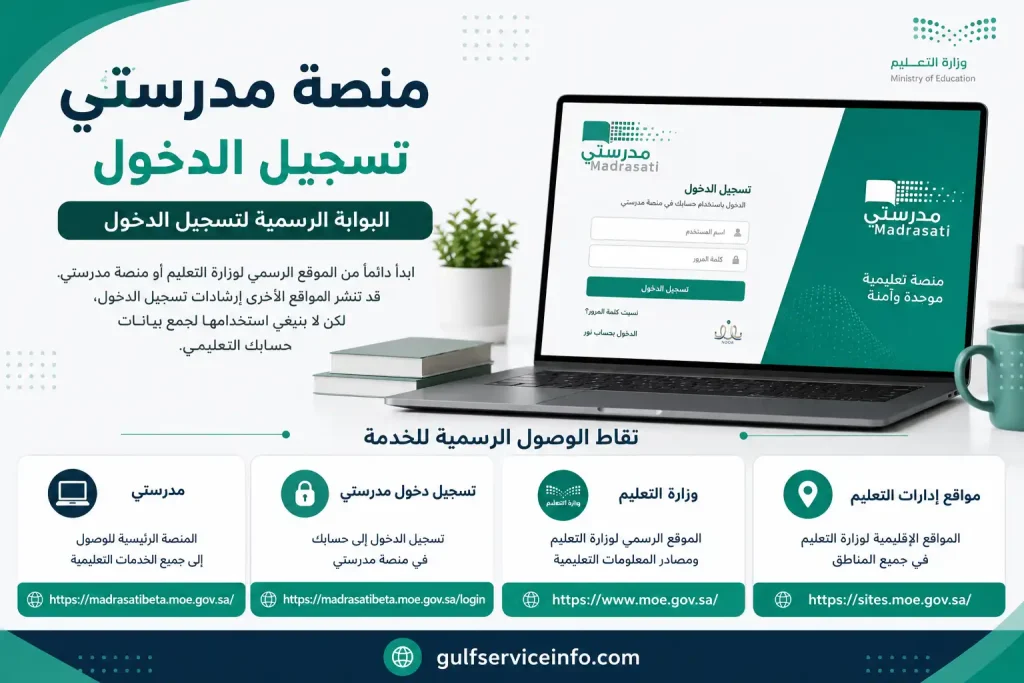
The following are the official access points provided for this service:

Official resourcePurpose
Madrasati PortalMain platform access
Madrasati LoginAccount sign-in
Ministry of EducationOfficial educational information
Ministry Regional WebsitesRegional Ministry resources
منصة مدرستي تسجيل الدخول – Official Madrasati login portal for students, teachers, and parents in Saudi Arabia.

Which Login Method Should You Choose?

The appropriate authentication method depends on your role within the education system.

Account categorySign-in method
StudentsMicrosoft educational account
TeachersMicrosoft educational account
ParentsMinistry unified login or Noor account
AdministratorsMinistry unified login

Before signing in: Check that you have selected the correct account category. A student Microsoft account, for example, is not interchangeable with a parent’s Noor credentials.
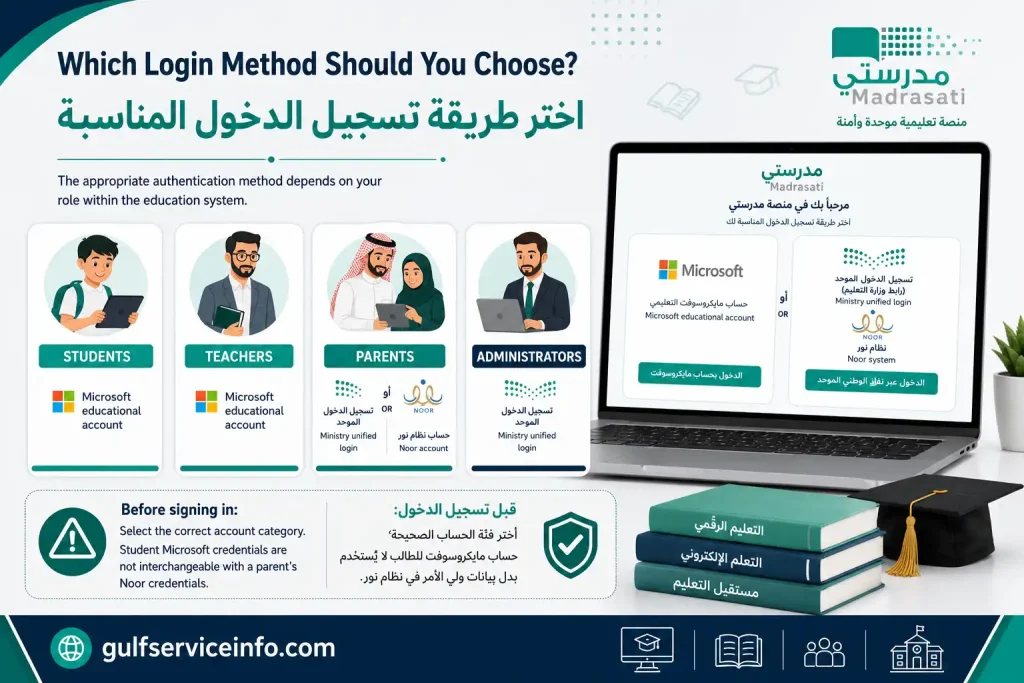
Which login method should you choose for accessing the Madrasati platform as a student, teacher, or parent.

How to Complete منصة مدرستي تسجيل الدخول for Students

Students generally use the Microsoft account issued for their educational activities to enter Madrasati. This account provides access to the learning resources and classroom services assigned to them.

Make sure you have the following ready:

  • Your school-issued Microsoft email address or username.
  • The password associated with that account.
  • A reliable internet connection.
  • A supported, up-to-date web browser.

Student Login Procedure

Follow this process to access your educational dashboard:
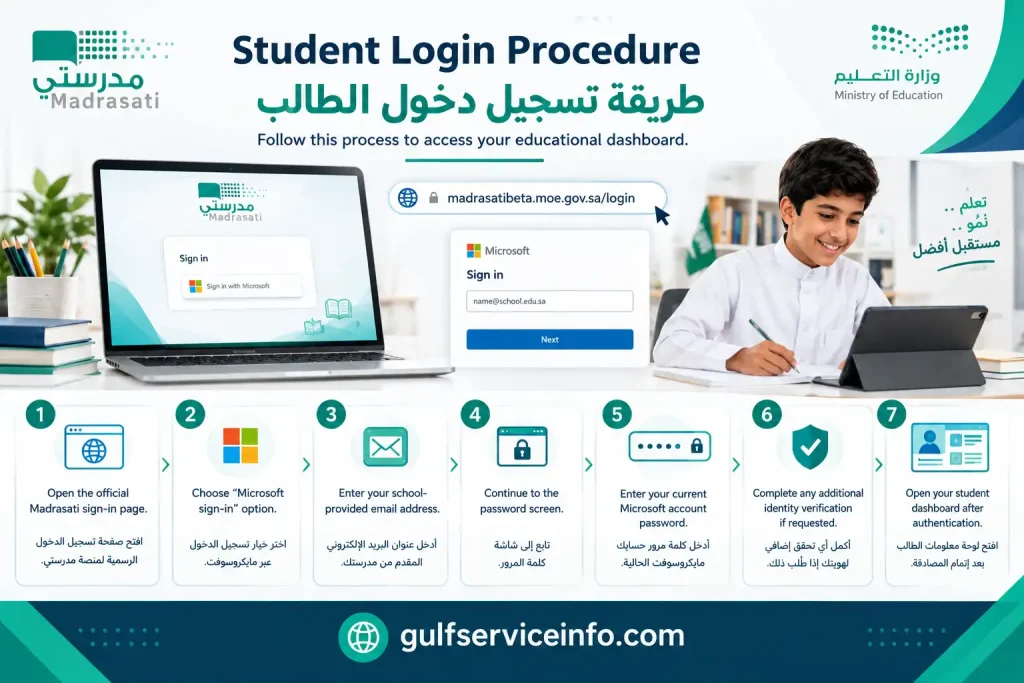
  • Open the official Madrasati sign-in page.
  • Find the Microsoft sign-in option.
  • Enter the email address provided through your school.
  • Continue to the password screen.
  • Enter your current Microsoft account password.
  • Complete any additional identity verification if the system requests it.
  • Wait for authentication to finish and open your student dashboard.
Step-by-step student login procedure for accessing the Madrasati platform in Saudi Arabia

After successful منصة مدرستي تسجيل الدخول, you can explore the educational services available to your account, including courses, homework, class schedules and other learning materials.

How Can New Students Obtain Their Madrasati Credentials?

Students who have not received their login information should check the official Ministry guidance before trying to create another account.

According to the Ministry’s published instructions, eligible students registered in the Noor system can obtain their Madrasati account information through a parent’s Tawakkalna account.

The relevant option is available under the educational services section, where parents can access the Madrasati account information service.

For the official procedure, visit:

Ministry of Education – Student Account on Madrasati

A practical security reminder: Keep your educational username and password in a secure place. Never share your account credentials with classmates or enter them into websites that are not operated by the Ministry of Education.

منصة مدرستي تسجيل دخول الطالب عبر مايكروسوفت

Microsoft authentication is the standard login route for students and teaching staff using Madrasati. It allows users to access their educational accounts without creating a separate personal account for every learning activity.

To complete منصة مدرستي تسجيل دخول الطالب عبر مايكروسوفت, follow these steps:
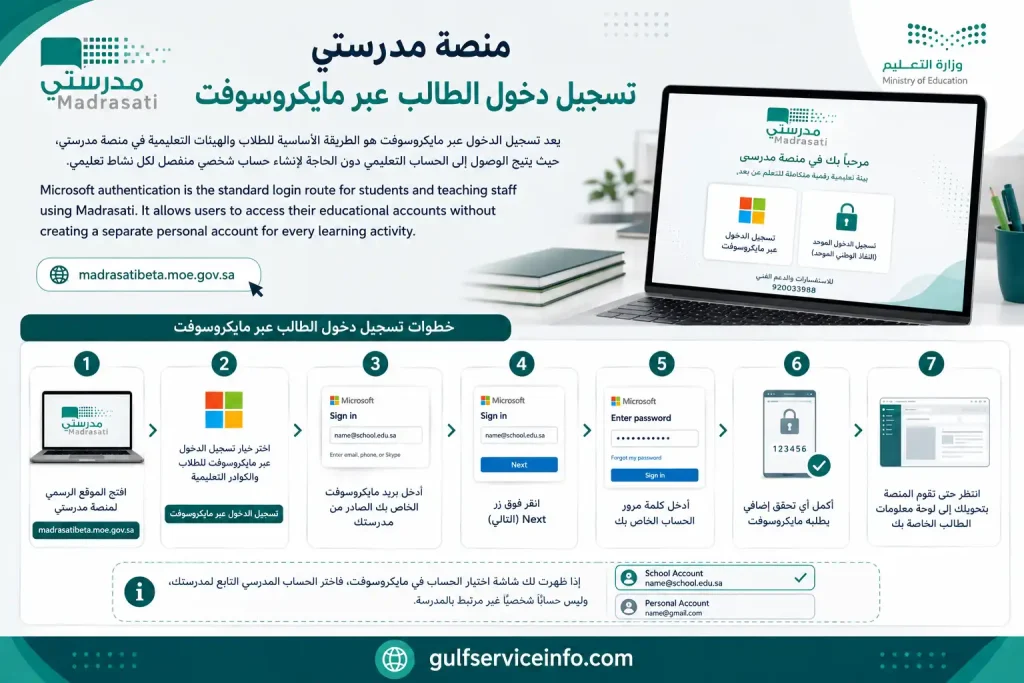
  • Open the Madrasati official website.
  • Select the Microsoft login option for students and educational staff.
  • Enter your school-issued Microsoft email address.
  • Click Next.
  • Enter your account password.
  • Complete any verification requested by Microsoft.
  • Wait for the platform to redirect you to your student dashboard.
منصة مدرستي تسجيل دخول الطالب عبر مايكروسوفت – Student login to the Madrasati platform using a Microsoft account.

If Microsoft displays an account selection screen, choose the school account rather than an unrelated personal account.

What If You Do Not Know Your Microsoft Username?

Students who cannot find their login credentials should ask their parent or guardian to check the educational account information available through Tawakkalna. They can also contact their school administration for assistance.

The Ministry’s student-account service explains how eligible students receive their usernames and passwords through their parent’s registered account.

منصة مدرستي تسجيل الدخول للمعلمين

Teachers use Madrasati to access educational resources, manage assigned learning activities and communicate with students. Their login process is similar to the student process, although the available dashboard features depend on their professional role and permissions.

Teacher Login Steps
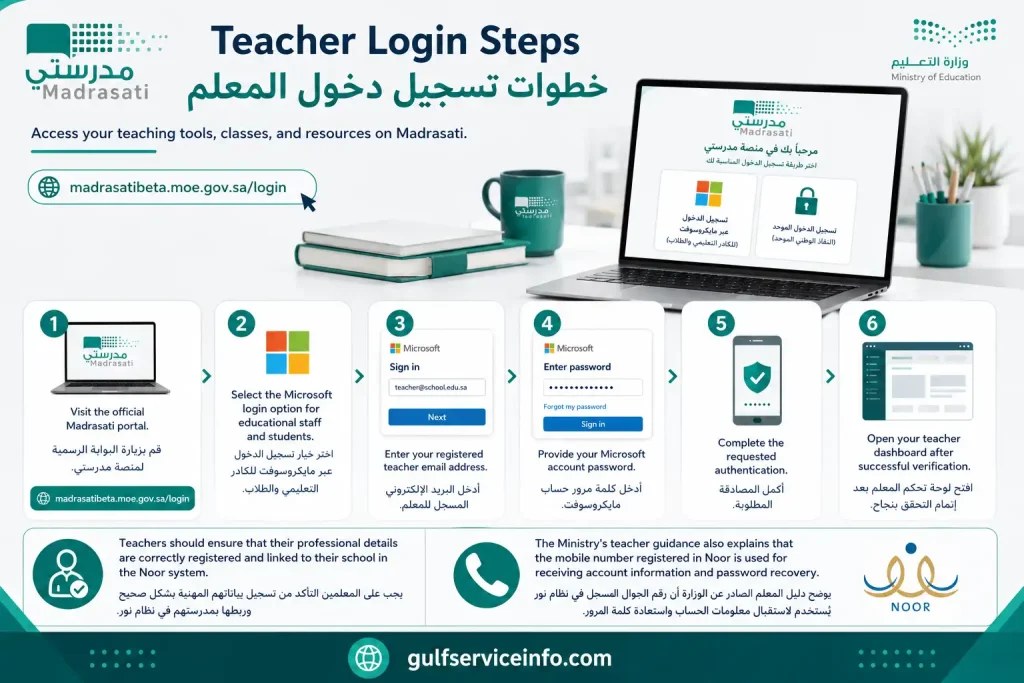
  • Visit the official Madrasati portal.
  • Select the Microsoft login option for educational staff and students.
  • Enter your registered teacher email address.
  • Provide your Microsoft account password.
  • Complete the requested authentication.
  • Open your teacher dashboard after successful verification.
Step-by-step teacher login steps for accessing the Madrasati educational platform in Saudi Arabia.

Teachers should ensure that their professional details are correctly registered and linked to their school in the Noor system.

The Ministry’s teacher guidance also explains that the mobile number registered in Noor is used for receiving account information and password recovery.

What Can Teachers Access?

Depending on their assigned permissions, teachers can use Madrasati to:

  • Create and manage student assignments.
  • Access educational courses and resources.
  • Prepare learning activities and assessments.
  • Manage available virtual classroom activities.
  • Review relevant student submissions.
  • Communicate with students and parents.

For detailed instructions, read the official Madrasati Teacher User Guide.

منصة مدرستي تسجيل الدخول لأولياء الأمور

Parents have a separate login route because their responsibilities differ from those of students and teachers. Through their accounts, they can follow their children’s educational activities and access the parent services available through the platform.

The Ministry’s parent user guide identifies the Noor account route for parents.

Parent Login Instructions
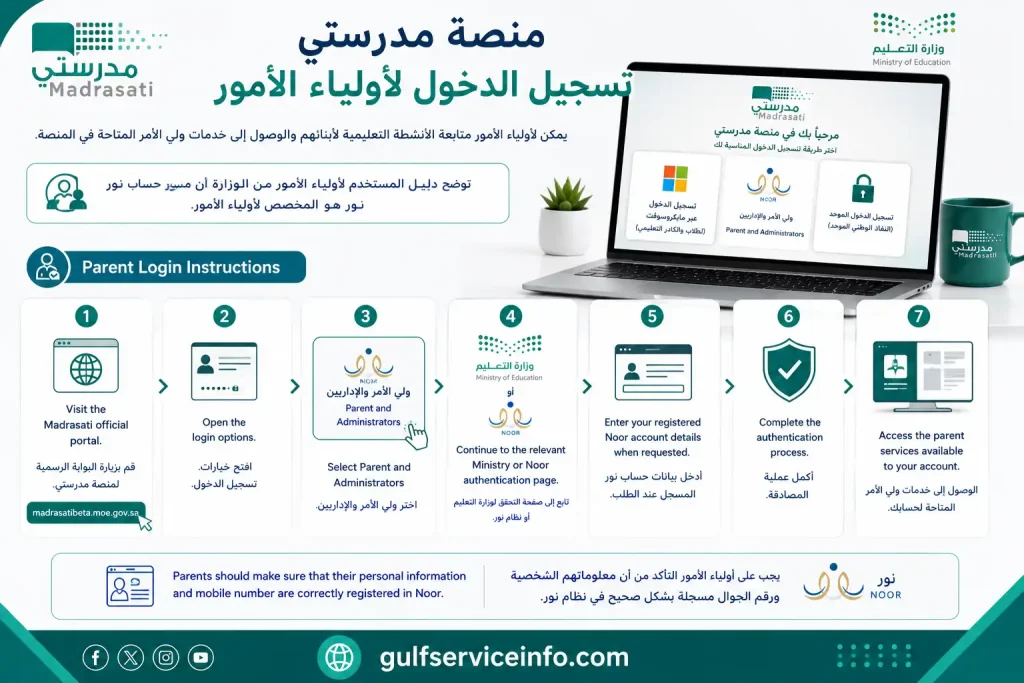
  • Visit the Madrasati official portal.
  • Open the login options.
  • Select Parent and Administrators (ولي الأمر والإداريين).
  • Continue to the relevant Ministry or Noor authentication page.
  • Enter your registered Noor account details when requested.
  • Complete the authentication process.
  • Access the parent services available to your account.
Step-by-step parent login instructions for accessing the Madrasati educational platform in Saudi Arabia.

Parents should make sure that their personal information and mobile number are correctly registered in Noor.

What Can Parents Do After Login?

Parents can use the available services to follow their children’s educational activities, check relevant academic information and communicate with the school through supported features.

They can also access their child’s timetable and other educational information according to their account permissions.

For additional guidance, consult the official Ministry of Education website.

منصة مدرستي تسجيل الدخول عبر نفاذ

The Ministry’s unified login route provides an alternative authentication method for eligible users. Depending on the account type and the login options currently displayed, users may be directed towards the National Single Sign-On service or the Noor account system.

To use the Nafath route where it is offered:

  • Open the official Madrasati portal.
  • Select the relevant unified Ministry login option.
  • Choose the National Unified Access option if displayed.
  • Follow the instructions to reach the Nafath authentication service.
  • Enter your registered identification details.
  • Complete the identity verification request through the official Nafath process.
  • Return to Madrasati after successful authentication.

Important distinction: Microsoft authentication is intended for students and teaching staff, while the Ministry’s unified login and Noor routes serve other eligible account categories. The exact options depend on the service and account permissions.

Always verify that the authentication request comes from an official government service before approving it.

How to Access الواجبات المدرسية on منصة مدرستي

The homework service is one of the most useful features for students because it allows them to view assigned tasks and follow their academic responsibilities online.

According to the Ministry’s official homework service, users can access assignments through the Courses and Resources (المقررات والمصادر) section.

Steps to Find Your Assignments
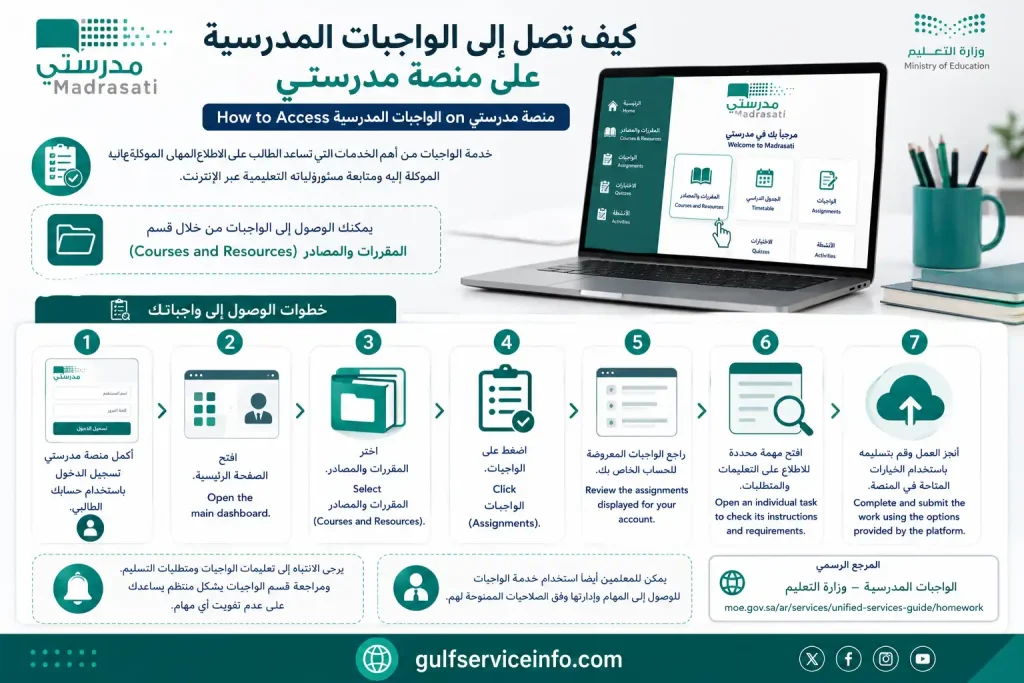
  • Complete منصة مدرستي تسجيل الدخول using your student account.
  • Open the main dashboard.
  • Select المقررات والمصادر.
  • Click الواجبات.
  • Review the assignments displayed for your account.
  • Open an individual task to check its instructions and requirements.
  • Complete and submit the work using the options provided by the platform.
How to access الواجبات المدرسية on منصة مدرستي to view and complete school assignments online.

Students should pay attention to assignment instructions and submission requirements. Checking the homework section regularly helps prevent missed tasks.

Teachers can also use the assignments service to access and manage tasks according to their permissions.

Official reference: الواجبات المدرسية – Ministry of Education.

How to Check مدرستي جدولي (Class Timetable)

The timetable feature helps students organise their school day by showing their scheduled lessons and subjects.

After completing منصة مدرستي تسجيل الدخول, students can access the timetable directly from the platform’s main menu.

Steps to View Your School Timetable

  • Sign in to Madrasati.
  • Open the main dashboard.
  • Select الجدول المدرسي.
  • Review your scheduled classes.
  • Check the subjects and corresponding teachers.
  • Use the timetable to prepare for upcoming lessons.

Parents can also view their child’s timetable through the appropriate account.

If the timetable appears incorrect or certain lessons are missing, contact the school administration to check the underlying class and scheduling information.

Official reference: عرض الجدول المدرسي – Ministry of Education.

How to Attend Online Classes Through منصة مدرستي

Accessing digital lessons, recovering account credentials and resolving technical errors are all part of using Madrasati. Although the platform brings several educational services together, users may occasionally need guidance to find a particular feature or restore access to their accounts.

منصة مدرستي تسجيل الدخول gives students, teachers and parents access to educational services provided through Saudi Arabia’s Ministry of Education. These include virtual classrooms, homework management, account recovery and technical assistance.

Whether you are preparing to attend an online lesson or trying to resolve a sign-in error, understanding the available options can save time and prevent unnecessary account problems.

Joining Virtual Lessons Through Madrasati

Madrasati supports online education through virtual classroom facilities. Students can use these tools to attend scheduled lessons, interact during educational sessions and participate in activities organised by their teachers.

Microsoft Teams is among the communication tools integrated into the platform for virtual learning.

Students can follow this process to enter an online classroom:

  • Complete منصة مدرستي تسجيل الدخول using your school-issued Microsoft account.
  • Open the student dashboard.
  • Navigate to your school timetable and identify the next scheduled lesson.
  • Find the virtual classroom option associated with that lesson.
  • Select the appropriate classroom session.
  • Press Join (انضمام) when the session becomes available.
  • Follow the instructions displayed in the virtual classroom.

Once connected, follow your teacher’s guidance and participate using the available classroom features.

What if the classroom link is missing?

Check whether the lesson has been scheduled and whether the teacher has made the virtual session available. If the joining option does not appear, contact your teacher or school administration for assistance.

It is also worth checking the timetable and platform notifications regularly. This helps students stay informed about lesson times and any changes to scheduled sessions.

Recovering Your Account: How to Reset a Madrasati Password

A forgotten password can prevent access to educational resources, but it does not necessarily mean that an account has been lost. Eligible users can use the official Madrasati password recovery service to verify their identity and establish new login credentials.

Password Reset Procedure

If you cannot remember your current password, use the following instructions:

  • Open the official Madrasati portal.
  • Locate the Registration / Password Recovery (التسجيل/استعادة كلمة المرور) option.
  • Select the account category that applies to you.
  • Enter the personal or account information requested by the recovery system.
  • Complete the required identity verification.
  • Follow the displayed instructions to create a replacement password.
  • Return to the login page and try signing in with your updated credentials.

The verification process may differ depending on the account type.

For example, the Ministry’s teacher guidance describes a recovery procedure involving information registered in Noor and a verification code delivered to the registered mobile number.

<row align=”center” gap={2}> <icon name=”key-round” color=”secondary” size=”lg”/> **Official password recovery resource** </row>

Madrasati Password Recovery Service

Password Safety Recommendations

Before attempting another login, check the following:

  • Make sure Caps Lock is set correctly.
  • Confirm that your keyboard is using the intended language.
  • Check that you have entered the correct username.
  • Avoid reusing weak or easily guessed passwords.
  • Never share your new password or verification codes with other people.

A secure password helps protect your educational account and the information associated with it.

Common Login Errors and How to Resolve Them

Not every problem with منصة مدرستي تسجيل الدخول is caused by an incorrect password. Account registration, Microsoft authentication, internet connectivity and browser settings can also affect access.

The following troubleshooting reference covers some common situations and the actions users can take.

ProblemWhat to do
Incorrect passwordUse the official password recovery service.
Forgotten usernameCheck the relevant school or Tawakkalna account information.
Microsoft authentication failureConfirm that you are using your educational Microsoft account.
Account not recognisedAsk your school administration to verify your registration.
Verification code not receivedCheck your registered mobile number and try again.
Incorrect school timetableContact the school administration.
Virtual classroom unavailableReview your timetable and speak to your teacher.
Repeated sign-in errorsTry another browser or clear the existing browser cache.

Further Steps When Madrasati Login Still Fails

If the usual solutions do not restore access, try a few additional checks before contacting technical support.

1. Test your internet connection

An unstable connection may interrupt authentication or prevent the dashboard from loading properly.

2. Check your account category

Students, teachers and parents do not necessarily use the same sign-in method. Return to the official login page and confirm that you have selected the correct option.

3. Update your browser

An outdated browser can sometimes cause compatibility problems. Install the latest available version and reopen the portal.

4. Try private browsing

Open the Madrasati website in a private or incognito window. This can help identify problems caused by stored cookies or browser extensions.

5. Check for account changes

Students and teachers who have moved to another school may need their educational Microsoft account information updated by the relevant school administration.

If these measures do not help, contact the Ministry’s technical support service rather than repeatedly attempting to sign in.

Contacting the Madrasati Technical Support Team

Some account problems require assistance from the Ministry of Education, particularly when registration information is incorrect or an account cannot be recovered through the available online service.

The Ministry provides a technical support service for users experiencing difficulties with Madrasati.

Official Support Information

Support channelDetails
Unified support telephone19996
Technical supportMinistry Technical Support Service
Ministry websiteSaudi Ministry of Education
Email[email protected]

What Information Should You Provide?

When requesting assistance, explain the problem in a clear and organised way. Depending on the support request, you may need to provide:

  • Your account category, such as student, teacher or parent.
  • A short explanation of the problem.
  • The exact error message appearing on your screen.
  • The troubleshooting methods you have already tried.

Providing these details can help the support team understand the issue more efficiently.

Security warning: Never disclose your account password or confidential verification codes to anyone claiming to represent technical support.

Frequently Asked Questions About منصة مدرستي تسجيل الدخول

If you have forgotten your password for منصة مدرستي, there are several ways to recover your account and set a new password. Choose the method that works best for you.

Method 1: Recover Your Username Through the Tawakkalna App

This may be the easiest option if your account details are linked to Tawakkalna.

  1. Open the Tawakkalna app on your mobile phone.
  2. Go to the Educational Services section.
  3. Select منصة مدرستي and choose the student or user account linked to your National ID.
  4. Copy the displayed username.
  5. Visit the Microsoft sign-in page or the Madrasati login portal and follow the available steps to reset your password using your username.

Method 2: Reset Your Password Through the Madrasati or Microsoft Website

You can also try recovering your account online:

  1. Visit the Madrasati service page.
  2. Select Forgot Password or Reset Password, if the option is available.
  3. Enter your registered email address or username.
  4. Choose a verification method, such as your registered mobile number or alternative email address.
  5. Enter the verification code you receive.
  6. Create a new password and enter it again to confirm.

Method 3: Contact Your School Administration

If the previous methods do not work, or your account details are affected by a school transfer, contact your school directly.

  • Speak to the school principal or the staff member responsible for IT services.
  • Ask them to check and update your Microsoft account details.
  • If necessary, request a new temporary password to regain access.

You can also contact the منصة مدرستي technical support team through the unified support number. The source text provides the number only partially as 199…, so confirm the complete number through the official Ministry of Education website before publishing or calling.

If you are unable to access منصة مدرستي, you may be wondering whether the platform is currently down. Reports of temporary access problems have occurred during periods of increased demand, including when schools in some regions switched to remote learning.

These issues may prevent students and teachers from signing in or cause delays and errors when opening their accounts. However, a login problem does not necessarily mean the entire platform is unavailable.

How to Fix منصة مدرستي Loading or Login Problems

If the platform is not loading properly or you cannot sign in, try the following steps:

1. Refresh the Page or Update Your Browser

The issue may be temporary or related to your browser. Refresh the page and try again. If the problem continues, update your browser or open the platform in another browser.

2. Reset Your Password

If you cannot sign in because your login details are not being accepted, use the password recovery option on the sign-in page. Follow the instructions to recover your account and create a new password.

3. Contact Technical Support

If the problem persists after trying these steps, contact the platform’s technical support team for assistance.

The supplied source lists the unified beneficiary support number as 19996. You can also contact the official support team through the Ministry of Education’s published communication channels.

Is the Problem With Your Account or the Platform?

Before changing your password, check whether the issue affects only your account or whether other users are experiencing similar problems. This can help you decide whether to troubleshoot your login details or wait for a temporary service interruption to be resolved.

If منصة مدرستي is not opening on your device, the problem may be related to your browser, cached files, internet connection or account verification. Before contacting technical support, try the following troubleshooting steps to restore access.

Quick Solutions When منصة مدرستي Will Not Open

1. Clear Your Browser Cache

Temporary files and cached browsing data can sometimes prevent websites from loading correctly.

  • Open your browser settings.
  • Find the option to clear browsing data.
  • Select cached images and files, and clear them.
  • Reopen the platform and try again.

2. Try a Different Browser

Your current browser may be causing the problem. Open the platform using another supported browser, such as:

  • Google Chrome
  • Microsoft Edge

You can also try accessing the platform directly through the official address:

schools.madrasati.sa

3. Sign Out and Sign In Again

A temporary sign-in issue may stop you from accessing your account.

  • Sign out of your Microsoft or Madrasati account completely.
  • Close the browser.
  • Open the platform again.
  • Sign in using your account details.

4. Check Your Internet Connection

An unstable internet connection can prevent the platform from loading or cause pages to stop responding.

  • Check that your Wi-Fi or mobile data is working properly.
  • Try switching to another network.
  • Restart your router or device if the connection remains unstable.

5. Complete Two-Step Verification

If Microsoft asks you to verify your identity, follow the instructions displayed on the screen. Use the Microsoft Authenticator app if it is requested to complete the account verification process.

Once verification is complete, try opening منصة مدرستي again.

If you have forgotten the email address or username associated with your منصة مدرستي account, you can retrieve it through the Tawakkalna app. If you already know your username but cannot remember your password, you can use Microsoft’s password recovery process.

Method 1: Retrieve Your Username Through the Tawakkalna App

The Tawakkalna app can help you find the username linked to your Madrasati account.

  1. Open the Tawakkalna app on your mobile phone.
  2. Go to the Educational Services section.
  3. Select the منصة مدرستي icon.
  4. Choose the student or user account associated with your National ID.
  5. Copy the displayed username or email address.
  6. Once you have retrieved your username, visit the Microsoft sign-in page and select Forgot my password? to create a new password if needed.

Method 2: Recover Your Account Through Madrasati and Microsoft

You can also try recovering your account directly through the platform’s Microsoft sign-in process.

  1. Visit the Madrasati service page and select the option to sign in with a Microsoft account.
  2. Click Forgot my password?
  3. Enter your username and complete the displayed verification challenge.
  4. Choose where to receive your verification code, such as your registered mobile number or alternative email address.
  5. Enter the code you receive.
  6. Follow the instructions to create and confirm a new password.

What If You Still Cannot Recover Your Account?

If neither method works, or you have recently transferred to another school, contact your school administration for assistance.

The original source ends before providing the full instructions for this situation, so check with your school about the appropriate account recovery process.

You do not need to install منصة مدرستي as a traditional computer programme. The platform is primarily accessed through a web browser using its official website. However, an official mobile app is also available for smartphones.

Whether you are using a computer, iPhone or Android device, you can follow the instructions below to access the platform.

How to Access منصة مدرستي on a Computer

You can use the platform directly through your computer’s web browser without downloading additional software.

  1. Open your preferred web browser.
  2. Visit the official منصة مدرستي website.
  3. Click Sign In.
  4. Select the appropriate account type:
    • Students and Teachers: Sign in using your Microsoft account credentials. The source indicates that these details can be obtained through the Tawakkalna app.
    • Parents: Sign in using your Noor system account.

Once you have entered the correct details, follow the on-screen instructions to access your account.

How to Download the Madrasati App on a Smartphone

If you prefer using your mobile device, you can look for the Madrasati app through the official app stores.

For iPhone and iPad (iOS)

  • Open the Apple App Store.
  • Search for the official Madrasati app.
  • Check that the app is published by the relevant Saudi Ministry of Education authority before downloading it.

For Android Devices

  • Open the Google Play Store.
  • Search for the Madrasati app associated with the Saudi Ministry of Education.
  • Check the publisher details before installing the application.

Accessing Your Account After Installation

After downloading the mobile app or opening the website, follow the sign-in instructions for your account type. Students, teachers and parents may use different login credentials, so make sure you select the correct option.

منصة مدرستي was launched in August 2020 by the Saudi Ministry of Education as a digital learning solution to help maintain the continuity of education through remote learning during the COVID-19 pandemic.

The platform provided students and teachers with an online learning environment, allowing educational activities to continue while schools were affected by pandemic restrictions.

منصة مدرستي offers a range of digital learning tools and services designed to support students, teachers and school administrators across Saudi Arabia. These features help organise lessons, manage assignments, monitor academic progress and make online learning more accessible.

The platform’s tools can be grouped into three main categories.

1. Tools and Features for Students

Students can use several built-in features to manage their daily learning activities and stay connected with their teachers.

  • Study Timetable: View scheduled virtual lessons and additional classes.
  • Courses and Learning Activities: Access digital textbooks, assignments and educational activities.
  • Homework and Online Tests: Complete assignments set by teachers and take electronic assessments.
  • Enrichment Bank: Explore additional digital learning materials and educational pathways to improve understanding.
  • Discussion Boards and Teachers’ Room: Communicate with teachers and classmates, ask questions and discuss learning topics.
  • Microsoft Office Applications: Use integrated Office tools to support studying, preparing documents and working collaboratively.

2. Tools and Features for Teachers

Teachers have access to digital tools that help them plan lessons, manage student work and monitor academic performance.

  • Lesson Preparation: Create, organise and plan lessons electronically.
  • Assignment and Grade Management: Send homework to students, review their submissions, mark assignments and record grades.
  • Reports and Statistics: Monitor student attendance, absences and academic progress.
  • Virtual and General Meetings: Deliver live lessons, explain course material and communicate with students online.

3. Popular Supporting Tools and External Add-ons

In addition to the official features available within منصة مدرستي, several external tools are commonly used to help teachers and school administrators manage educational tasks.

These tools are separate from the platform itself and may offer additional functions.

  • Madrasati Plus: An add-on designed to help teachers prepare lessons, manage grades and export grade data to Excel. It also provides administrative tools for analysing results and monitoring student absences.
  • Naqar: A digital assistant that supports educational staff with printing reports, importing attendance records and analysing certificates.
  • Wadeh: Provides school leadership tools for monitoring performance indicators, daily reports and achievement portfolios.
  • Tahdiri: Offers educational presentations, learning games, lesson plans and grade-recording tools.

How These Tools Support the Learning Process

The different tools available through منصة مدرستي help connect students, teachers and school administrators in one digital learning environment. Students can organise their studies and complete assignments, teachers can manage lessons and assess performance, and school leaders can use reporting tools to monitor educational activities.

Together, these features make it easier to manage everyday teaching and learning tasks online.

The Ministry of Education in Saudi Arabia is the official authority responsible for منصة مدرستي. It oversees the platform and its role in supporting digital education across the Kingdom.

At the school level, responsibility for daily implementation, activation and follow-up is generally handled by:

  • School Principal: Oversees the platform’s implementation and ensures that its educational services are activated within the school. The principal may also delegate these responsibilities to authorised administrative staff.
  • Ministry Technical Support: Assists users with technical difficulties, login issues and other platform-related problems.

If students, teachers or parents experience technical issues, they can contact the Ministry of Education through its unified support number, 19996, or use the available support services through the official platform.

This division of responsibilities helps ensure that منصة مدرستي remains accessible and that technical or operational concerns are directed to the appropriate authority.

Final Thoughts

Understanding منصة مدرستي تسجيل الدخول makes it easier for students, teachers and parents to access Saudi Arabia’s digital education services. The key is choosing the correct authentication method and keeping your account information up to date.

Students can use Microsoft authentication to reach their courses, assignments and virtual classrooms. Teachers can manage educational activities, while parents can follow their children’s learning through the designated account services.

For a safe experience, always use the official Madrasati portal and refer to the Ministry of Education website whenever you need updated instructions.

Keeping your login details secure and checking your educational dashboard regularly will help you make better use of the services available through Madrasati.
Similar Posts

Leave a Reply

Your email address will not be published. Required fields are marked *