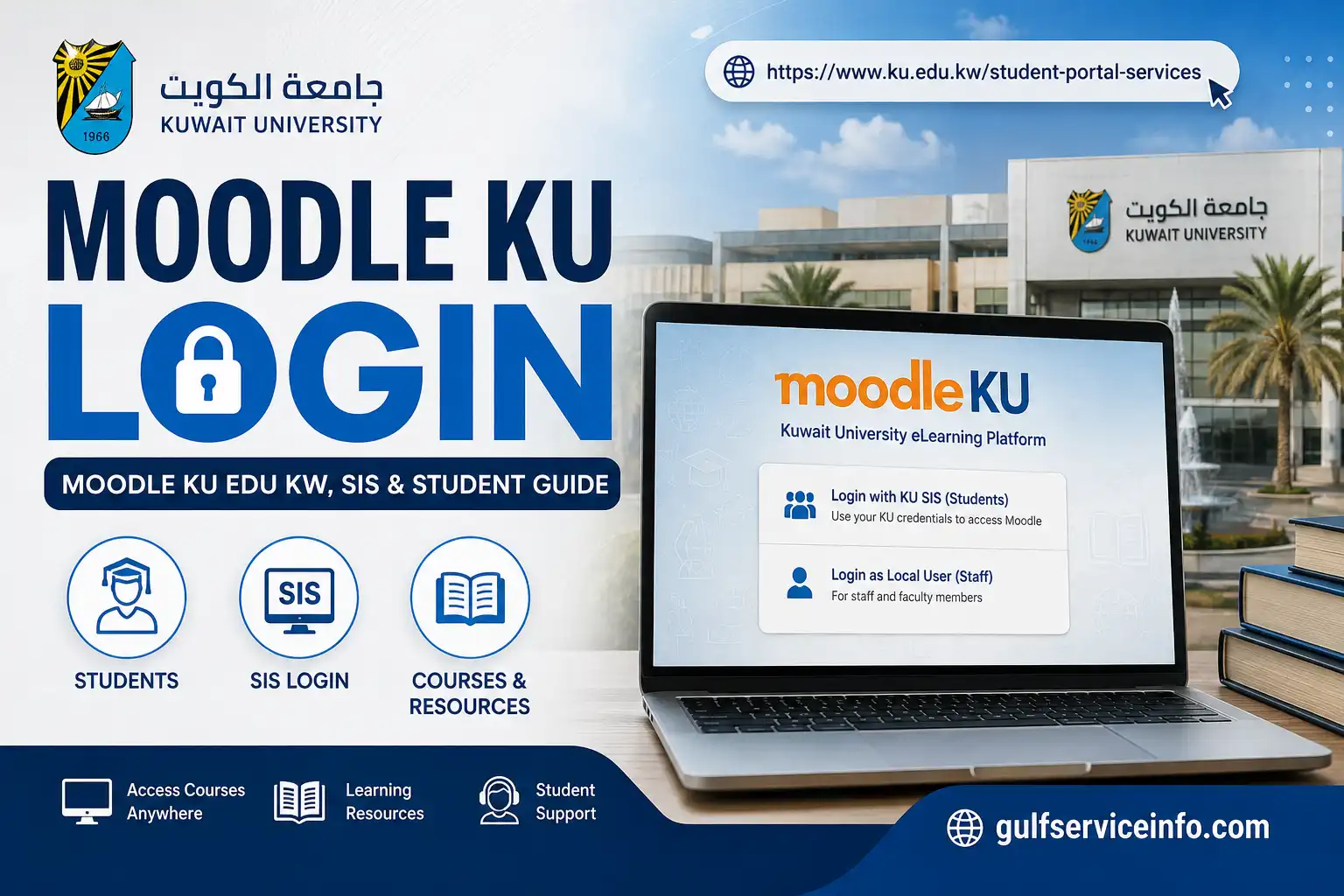
Moodle KU Login: Moodle KU Edu KW, SIS & Student Guide

Published On: August 19, 2026
Follow Us
Moodle KU Login guide for Moodle KU Edu KW, SIS and Kuwait University students

Moodle KU is Kuwait University’s official online learning platform for students and faculty. It is used to access course materials, assignments, quizzes, announcements, discussions, and other academic activities in one place. Kuwait University identifies Moodle as its official e-learning platform and provides a dedicated Moodle system through its university website.

For students searching for Moodle KU login, Moodle KU Edu KW, or moodle.ku.edu.kw login, the official Moodle address is moodle.ku.edu.kw. Kuwait University’s Student E-Services page also links directly to this domain as the university’s Moodle System.

Explore more useful online services and helpful guides: Visit Our Homepage.

What Is Moodle KU?

Kuwait University Moodle online learning platform, designed to support both online and blended learning. It gives students a central place to reach their enrolled courses, while instructors can use the system to share academic resources, organise activities, and interact with students.

Depending on the course and the tools enabled by the instructor, students can use Moodle KU to:

  • Open their enrolled courses and course pages
  • Read or download lecture notes and other learning materials
  • Submit assignments online
  • Complete quizzes and online exams
  • Receive course announcements
  • Join forums and academic discussions
  • Follow course activities, calendars, and deadlines
  • Communicate with instructors through Moodle’s available features

Kuwait University’s Moodle resources cover functions including assignments, quizzes, forums, course materials, calendars, and course progress.

Moodle KU Login

Getting started with a Moodle KU login requires students to authenticate through Kuwait University’s KU SIS system. The process is straightforward: open Moodle, choose the KU SIS option, enter your university email and password, and complete any additional verification requested by the university.

Step 1: Visit the Official Kuwait University Moodle Website

Open the official Kuwait University Moodle portal at moodle.ku.edu.kw.

On the Moodle login page, select KU SIS to begin the university authentication process.
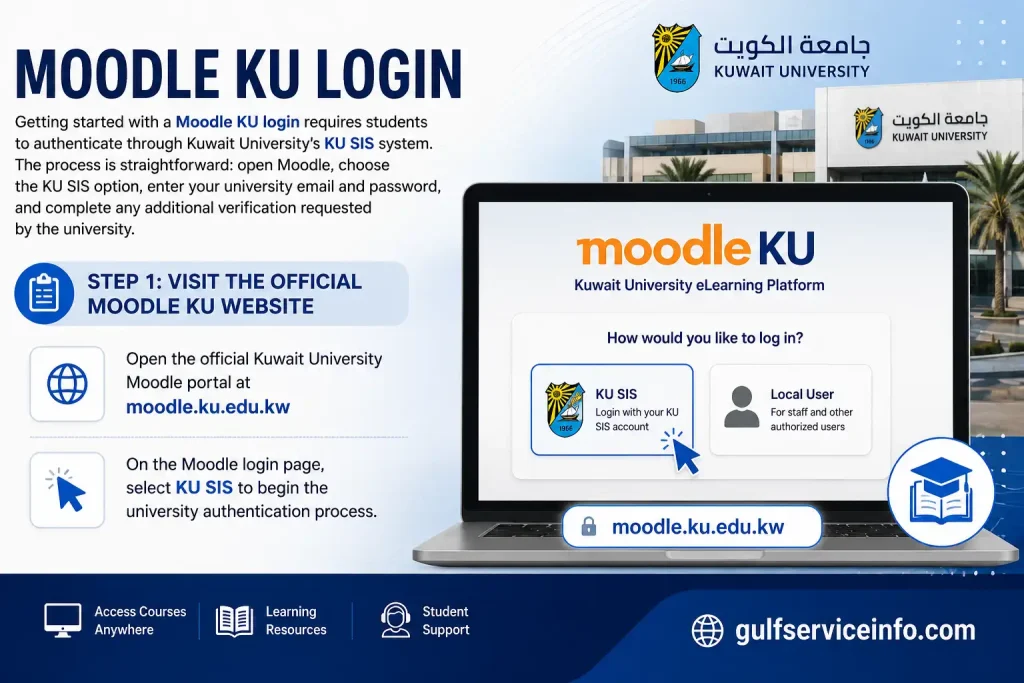
Visit the official Moodle KU website at moodle.ku.edu.kw and select KU SIS login

Step 2: Choose “KU SIS”

Click KU SIS on the Moodle login screen. You will then be redirected to the Kuwait University authentication page, where you can sign in with your university account.
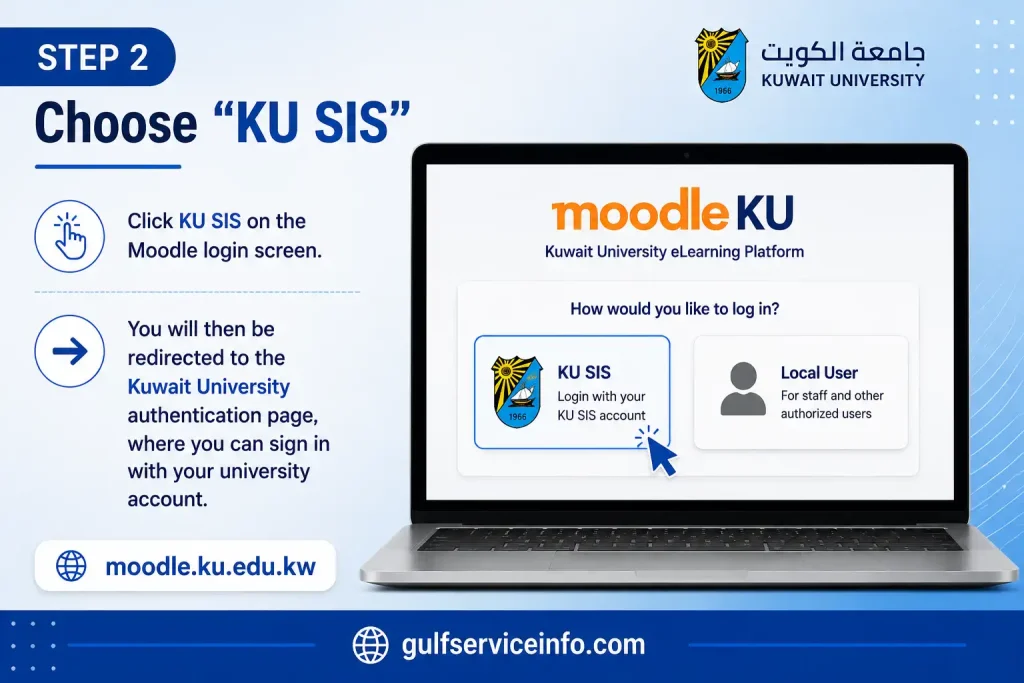
Choose KU SIS on the Moodle KU login screen to access Kuwait University authentication

Step 3: Enter Your KU Email Address

Enter your Kuwait University email address and click Next.

For students, Kuwait University states that the university email uses the following format:

S[Student ID]@ku.edu.kw

For example, if your student ID is 123456789, your university email would be:
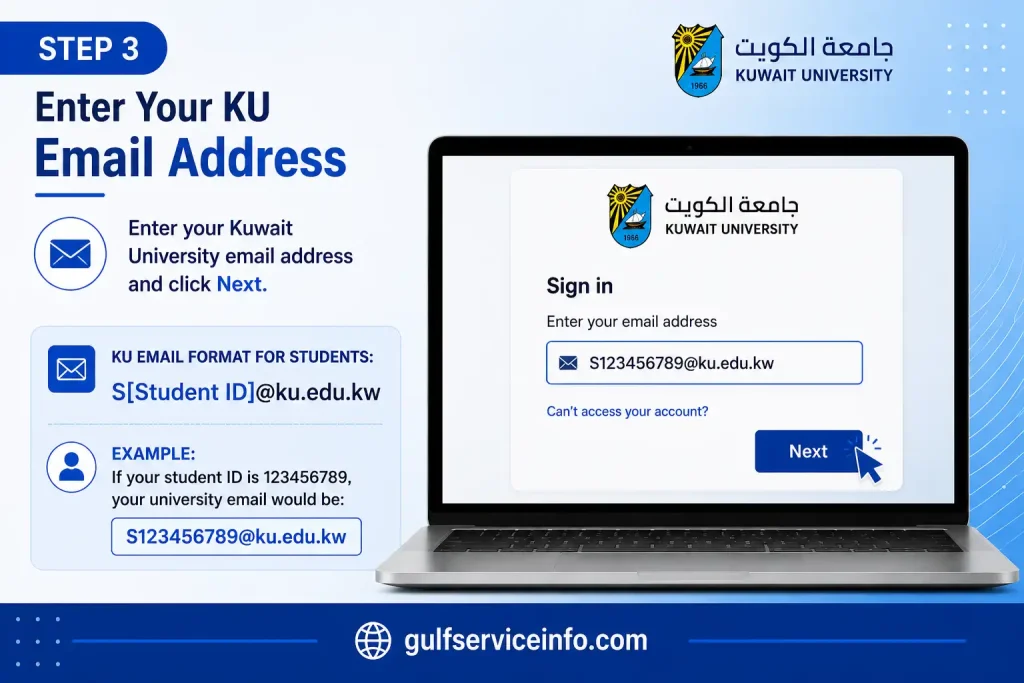
[email protected]

Enter your Kuwait University email address to continue Moodle KU login

Step 4: Enter Your Password

Enter the password associated with your KU university email account, then select Sign in.

The university’s Moodle guidance states that students authenticate to Moodle using their KU email credentials.
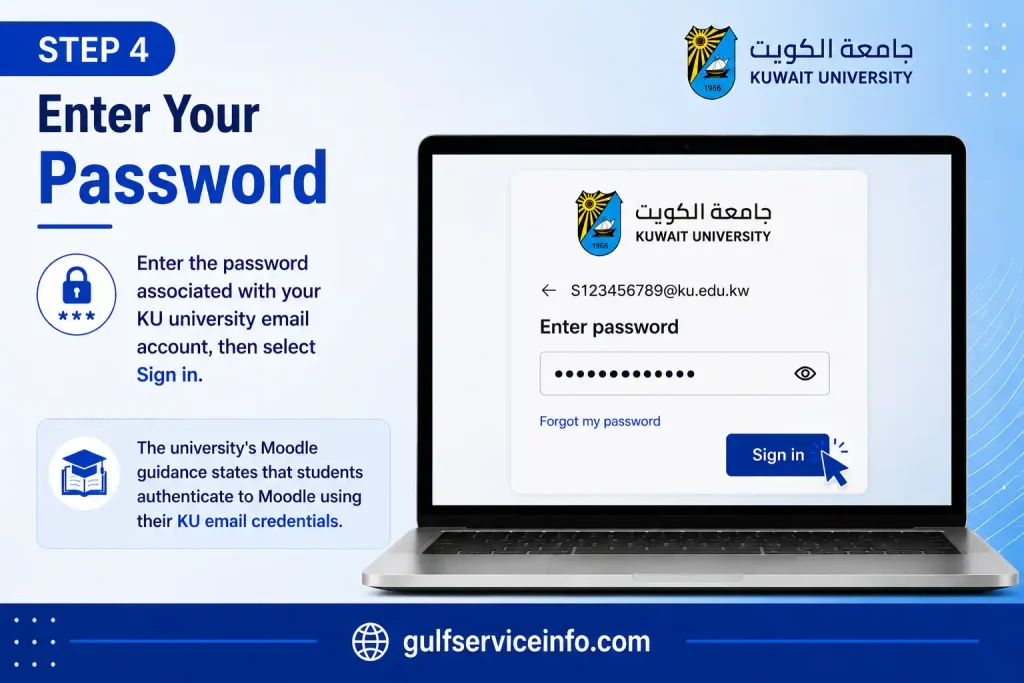
Enter your KU email password and sign in to Moodle KU

Step 5: Complete Any Required Verification

If the KU authentication system asks for an additional verification step, follow the instructions displayed on screen.

This may include the university’s Multi-Factor Authentication (MFA) process, which students are required to configure when accessing KU systems.
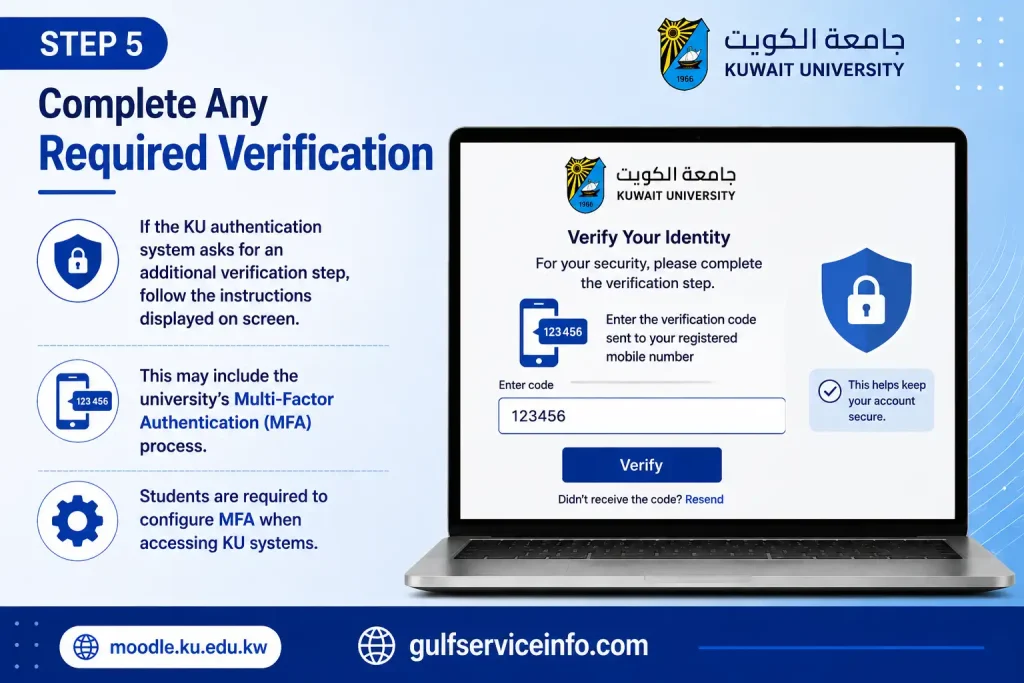
Complete required verification and MFA when signing in to Moodle KU

Step 6: Access Your Moodle Dashboard

Once authentication is successful, you will be returned to your Moodle account.

Your dashboard should provide access to your enrolled courses and other available Moodle features. Kuwait University’s student guidance identifies areas such as courses, recently accessed courses, the timeline, and the Moodle calendar as part of the dashboard experience.
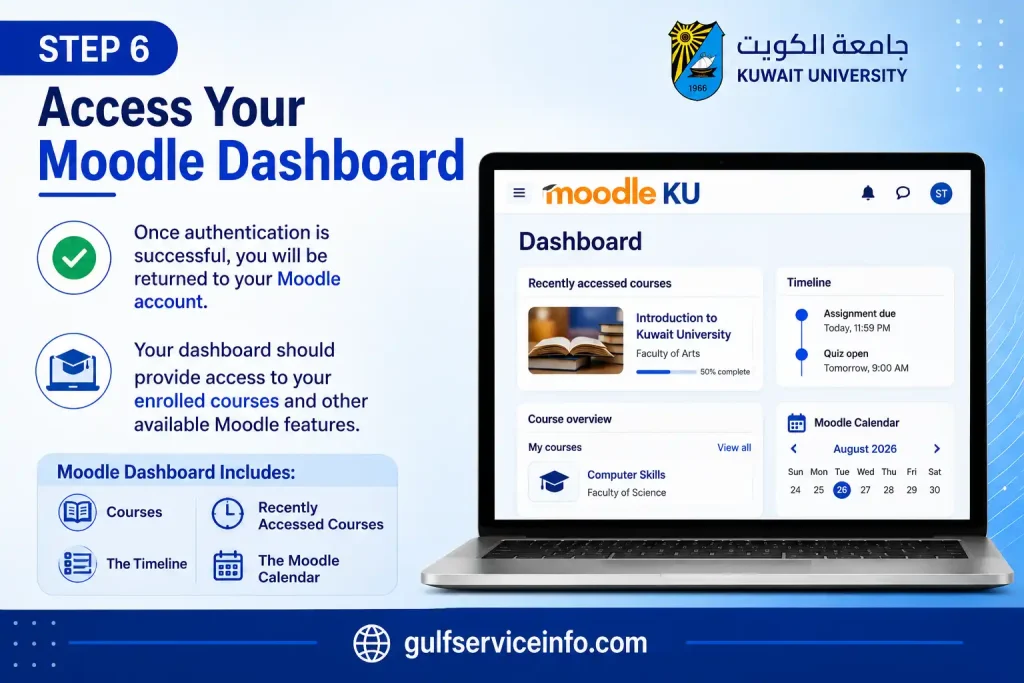
Access your Moodle KU dashboard with courses, timeline, and Moodle calendar

Moodle KU Edu KW Login

Searches such as moodle ku edu kw, moodle.ku.edu.kw login, and moodle ku edu kw login generally point to the same Kuwait University Moodle service. The key is to make sure you are using the university’s verified Moodle domain before entering any account details.

The official Moodle address is:

moodle.ku.edu.kw

Kuwait University’s Student E-Services page identifies this domain as its Moodle System, and the university’s E-Learning Center also provides a direct link to the same Moodle service.

How to Verify the Official Kuwait University Moodle Website

Before signing in, check the website address carefully. You should:

  • Confirm that the domain is moodle.ku.edu.kw
  • Prefer accessing Moodle through an official ku.edu.kw Kuwait University page
  • Avoid entering your credentials on unrelated third-party login pages
  • Use your KU university credentials only through the official authentication process

For the safest approach, you can start from Kuwait University’s official Student E-Services page and select Moodle System.

Are moodle.ku.edu.ku and Similar Variations Official?

You may encounter alternative spellings in searches, including:

  • moodle.ku.edu.ku
  • moodle.kw.edu.ku
  • moodle.ku.edu.kw ku

A similar-looking web address does not make it an official Kuwait University service. The verified Moodle address provided in the source material is:

moodle.ku.edu.kw

Always check the domain before entering your KU email address, password, or other university credentials.

How to Access KU Moodle on Mobile

Kuwait University gives students two convenient ways to use Moodle from a phone or tablet: through the official KU Moodle app or a mobile web browser. Both options connect through KU SIS, allowing you to reach your courses and learning materials without needing a desktop.

Access KU Moodle Through a Mobile Browser

If you prefer not to install an app, the mobile version of Moodle works through modern browsers such as Chrome, Safari, or Edge.

Follow these steps:

  • Open your preferred mobile browser.
  • Visit moodle.ku.edu.kw.
  • Choose KU SIS when prompted.
  • Enter your Kuwait University email address.
  • Type your password.
  • Complete any authentication or MFA verification requested.
  • Once signed in, open your dashboard and choose the course you need.

This option is particularly useful when you have limited phone storage or simply want to access Moodle without installing another application.

Use the KU Moodle Mobile App

Kuwait University’s Student Moodle Guide confirms that the official Moodle application is available for both iOS and Android. To get started, download the app from the appropriate app store and connect it to the KU SIS login.

After installation:

  • Open the App Store or Google Play.
  • Search for KU Moodle.
  • Install the official application.
  • Launch the app and select KU SIS.
  • Sign in with your Kuwait University email and password.
  • Complete any required authentication.
  • Open your courses from the Moodle dashboard.

The app provides a dedicated mobile interface, making it practical for checking course content and completing supported activities while away from a computer.

What Can You Do Through KU Moodle on Mobile?

The features available to you depend on how your course has been configured, but the KU Moodle app can support several common learning activities.

You may be able to:

  • View enrolled courses
  • Open PDF and Office documents
  • Watch videos and access audio or images
  • Upload files for assignments
  • Take quizzes
  • Join course forums
  • Access course activities
  • Use certain learning materials offline

Some Moodle activities can also be used offline. When the device reconnects to the internet, supported activity data can synchronise, although this depends on the activity’s Moodle settings and restrictions.

Troubleshooting KU Moodle on Your Phone

A login problem does not always mean that your university account is unavailable. Before seeking further assistance, check the basics first.

  • Make sure you are using moodle.ku.edu.kw.
  • Check that your phone has a stable internet connection.
  • Update the KU Moodle app if you are using it.
  • Close the application and open it again.
  • Try accessing Moodle through a mobile browser.
  • Recheck your KU email address and password.
  • Complete any required MFA verification.
  • If you are using a browser, clear its cache and cookies and try again.

If the app continues to cause problems, switching temporarily to the browser version can help determine whether the issue is related to the application or the account login.

Moodle KU SIS: What Is the Difference?

The terms Moodle and KU SIS often appear together when Kuwait University students log in, which can make the two systems seem like the same service. They are not. Each has a different purpose within the university’s digital services.

MoodleKU SIS
Course learning platformStudent information system
Course materialsAcademic and student records
Assignment submissionsRegistration and academic information
Course announcementsGrades and university-related records
Quizzes and learning activitiesCourse schedules and registration details
Course discussionsAdministrative student services

Kuwait University’s Student E-Services list the Moodle System and Student Registration System as separate services. The Student Registration System is used for areas such as course schedules, grades, and registration information.

Why Do You See KU SIS When Logging In to Moodle?

Seeing KU SIS on the Moodle login screen can be misleading, but it doesn’t mean the two platforms are identical.

According to Kuwait University’s Moodle login instructions, students select KU SIS when signing in to Moodle. In this context, KU SIS forms part of the university’s authentication process that allows students to access their Moodle account.

In other words, Moodle is where you access your courses, while KU SIS is involved in verifying your university login credentials.

What Can You Do on Moodle KU?

After signing in to Kuwait University Moodle, the tools and activities you see will vary depending on your enrolled courses and the features your instructors have enabled. Moodle brings course resources, assignments, communication, and other learning activities together in one place.

Common things you can do include:

  • Access your courses — View the courses linked to your university account from your Moodle dashboard.
  • Open course materials — Read or download lecture notes, documents, and other resources provided by your instructors.
  • Submit assignments — Upload and submit coursework through the relevant Moodle assignment activity.
  • Follow course announcements — Check updates and notices posted by your instructors or course teams.
  • Complete online quizzes — Take quizzes or other online assessments when your instructor makes them available.
  • Join course discussions — Use forums to ask questions, reply to classmates, and share permitted files or information.
  • Track course activities and deadlines — View available resources, activities, calendars, and important due dates.
  • Communicate through Moodle — Use the communication and forum tools provided for your courses to interact with instructors and other students.

Kuwait University’s documentation supports Moodle features for assignments, quizzes, forums, course resources, calendars, and communication tools, although the exact features available can differ from one course to another.

How to Find Your Courses on Kuwait University Moodle

Once you have completed your Moodle KU login, your enrolled courses can be accessed through the Moodle dashboard. The My courses area is where you can find the courses linked to your account.

Sign In to Moodle KU

Start by visiting moodle.ku.edu.kw and signing in with your Kuwait University credentials.

Open Your Moodle Dashboard

After signing in, go to the Dashboard. This is the main area for accessing your courses and other Moodle activities.

Go to “My Courses”

From the dashboard, select My courses. According to Kuwait University’s Student Moodle Guide, this section displays the courses in which you are enrolled.

Select a Course

Find the course you need and select it to open the course page.

Access Course Content

Once inside the course, you can explore the resources and activities your instructor has made available. These may include course files, assignments, quizzes, forums, and other learning activities.

Moodle KU Login Problems: Common Issues and Solutions

Moodle KU access problems are usually related to account credentials, browser settings, website access, or course activation rather than Moodle itself. If you cannot sign in to Moodle KU, start by checking the official Moodle address, your KU account details, and any multi-factor authentication (MFA) request. The troubleshooting steps below cover the most common login, password, website, and missing-course issues.

What to Check When Moodle KU Login Fails

When your Moodle KU login does not work, go through these checks before contacting support:

  • Make sure you are accessing moodle.ku.edu.kw.
  • Enter the correct KU email address.
  • Recheck your password and make sure there are no typing errors.
  • Complete MFA if the system asks you to verify your identity.
  • Open Moodle in a different browser.
  • Clear your browser’s cookies and cached files, then try again.

Kuwait University’s Student Moodle Guide recommends clearing browser cookies and cache when students are unable to access Moodle.

Forgot Your Moodle KU Password?

A forgotten Moodle password should be resolved through Kuwait University’s account password-reset service because Moodle uses your KU account credentials.

Use the official KU Password Reset service to regain access. The university’s Moodle guidance explains that students can enter their Kuwait University ID, verify their identity with a security code sent to their registered personal email address or mobile number, and then set a new password.

Password reset: mspwdreset

Moodle KU Website Won’t Open

If moodle.ku.edu.kw is not loading, the problem may be related to your connection, browser, device, or the Moodle service itself. Try the following:

  • Test your internet connection.
  • Check that you entered the Moodle KU address correctly.
  • Try opening Moodle with another browser.
  • Delete cookies and cached browser data.
  • Test the website from another device or network.
  • Check Kuwait University’s official website for service-related information.
  • Contact Moodle support if the website remains inaccessible.

A browser change or cache reset can often rule out a local browser problem before you escalate the issue to university support.

Why Is My Course Missing From Moodle KU?

If you can log in successfully but a course is not visible, your Moodle account may be working normally. The course might simply not have been activated yet.

Kuwait University’s current student guidance advises students to contact the course instructor when an expected course does not appear, as the instructor may not have activated it.

What to Do If Your Moodle KU Account Is Locked

If your KU credentials are repeatedly rejected or you suspect that your account has been locked, avoid continuing to enter different passwords. Instead, verify your account details and use Kuwait University’s official password-reset service if you need to recover your credentials.

If the problem remains after resetting or confirming your account information, contact the appropriate university technical-support team for assistance.

For Moodle-specific support, Kuwait University’s current student guidance lists:

Moodle Login Works but My Courses Are Not Showing

A successful Moodle login does not necessarily mean every enrolled course will immediately appear. Start by checking your My Courses area and dashboard, then confirm that you are signed in with the correct KU account.

If the course is still missing, check the following:

  • Confirm that you are using the correct KU account.
  • Make sure your semester and course registration are complete.
  • Contact the instructor to check whether the course has been activated.
  • Contact Kuwait University support if the issue continues.

The university specifically directs students to contact their instructor when an enrolled course is missing because the instructor may not yet have activated it.

Frequently Asked Questions

Yes. You can access Moodle from your smartphone using either the official Moodle app or a mobile web browser. This makes it possible to keep up with your courses, even when you’re away from a computer.

The Moodle app is available for both iPhone and Android devices. You can use it to access course materials, complete quizzes, submit assignments and check your grades.

Getting Started with Moodle on Mobile

Using Moodle on your phone is straightforward:

  1. Install the Moodle app from the Apple App Store or Google Play Store.
    Moodle on the Apple App Store
  2. Enter your school or organisation’s Moodle website address when prompted.
  3. Sign in with the same username and password you normally use for Moodle.

Once you’re logged in, the app gives you access to the courses and activities supported by your institution’s Moodle setup.

What Can You Do on a Phone?

For everyday course work, the Moodle mobile app can be useful for:

  • Reading course materials
  • Taking quizzes
  • Submitting homework or assignments
  • Checking grades
  • Accessing downloaded course files

What About Offline Access?

Some Moodle course files can be downloaded to your phone, allowing you to read them when you don’t have an internet connection. This can be useful when travelling or when your connection is unreliable.

When Should You Use a Mobile Browser Instead?

The Moodle app isn’t always the best option for every Moodle site. If your school uses an older Moodle installation or custom plugins that aren’t supported by the app, you can access Moodle through your phone’s browser instead.

Simply open Chrome, Safari or another mobile browser and visit your institution’s Moodle website.

Is a Phone Enough for Moodle?

For basic learning tasks, a phone can handle much of what you need. However, some more complex activities—particularly course-building or certain detailed tests—may be easier to complete on a laptop or desktop computer.

In short: Moodle works well on smartphones for accessing courses and completing many everyday learning tasks, but a computer may still be more convenient for advanced activities.
:::

Yes. Moodle has an official mobile app for Android and iOS, giving students and teachers a convenient way to access their courses from a phone or tablet. The free app supports everyday learning tasks such as viewing course content, completing assignments, taking quizzes and checking grades.

Official Moodle Mobile App

What Can You Do with the Moodle App?

The app brings many common Moodle activities to your mobile device, including:

  • Access courses offline: Download supported course materials so you can read content or view videos without an internet connection.
  • Receive notifications: Stay informed about messages, forum activity and upcoming assignment deadlines.
  • Complete coursework: Take quizzes, participate in forums and upload documents or media directly from your phone.
  • Track your progress: Check completed activities and review your grades as you work through your courses.

What Do You Need to Use It?

Before installing the app, there are a few requirements to consider:

  • Moodle version: The app supports Moodle LMS sites running version 3.5 or later.
  • Mobile services: Your school or organisation must have Moodle’s mobile web services enabled by an administrator.
  • Cost: The app is free for individual users. Institutions may also have access to premium options for features such as custom branding and unlimited push notifications.

One Thing to Check

Installing the app isn’t always enough. If your school’s Moodle site doesn’t have the required mobile web services enabled, you may not be able to connect through the app. If that happens, check with your Moodle administrator or use your school’s Moodle website through a mobile browser.
:::

Moodle itself does not automatically monitor students through a webcam or spy on their screens. Instead, online exam monitoring usually depends on proctoring plugins, secure browsers and activity logs that are integrated with a Moodle site.

The exact monitoring features depend on which proctoring system or plugin the institution has installed.

What Can Proctoring Tools Monitor?

When Moodle is connected to a compatible proctoring solution or secure browser, several types of monitoring may be used.

Webcam and AI Monitoring

Some proctoring systems use a webcam to record the student’s face during an exam. AI-based monitoring may flag unusual events, such as:

  • Looking away from the screen
  • Covering the face
  • Leaving the camera’s view
  • Another person appearing in the room

These events may be flagged for review rather than automatically proving that cheating occurred.

Secure Browser Restrictions

Tools such as Respondus LockDown Browser can restrict what you can do while taking an exam. Depending on the configuration, a secure browser may prevent access to other tabs, restrict screen resizing, block copy-and-paste actions and disable certain keyboard shortcuts.

Audio Monitoring

Some proctoring systems also use the microphone to detect background sounds or conversations during an assessment. Suspicious audio events may then be reviewed as part of the proctoring process.

What Does Moodle Record Without Proctoring?

Standard Moodle quiz activity can still produce logs that help identify unusual behaviour, even when no webcam-based proctoring tool is being used.

Depending on the Moodle configuration, these records can include:

  • Timing: How long a student spends on individual questions.
  • Focus changes: Whether the browser loses focus or the student switches tabs, where this is supported by the active theme or plugin.
  • Network information: IP addresses and login locations, which can help identify multiple or unauthorised users.

The Key Point

Moodle does not have one built-in cheating-detection system that works the same way for every exam. What is monitored depends on the plugins, secure browser and Moodle configuration used by the school or organisation.
:::

Yes. Moodle remains a strong and capable learning management system (LMS), particularly for organisations that want a flexible, open-source platform without per-user licensing fees.

Its open-source model and broad use by large institutions make it a well-established option. However, Moodle can require more technical setup and has a steeper learning curve than some simpler LMS platforms.

Who Is Moodle Best For?

Moodle is particularly well suited to organisations that have access to IT or technical support. Teams with the resources to configure and manage the platform can take greater advantage of its flexibility and capabilities.

For smaller organisations or casual users without technical support, the initial setup and learning curve may make Moodle less straightforward.

The Bottom Line

Moodle is still a good LMS, but whether it is the right choice depends on your organisation’s needs and technical resources. Its open-source model, flexibility and lack of per-user licensing fees make it an attractive option for many institutions, while its technical requirements may be a drawback for users looking for a simpler solution.

If you’re logged into Moodle as a teacher or administrator, you can use the Switch role feature to preview a course from a student’s perspective. This lets you see how the course appears to someone with the student role.

Switch to the Student Role

  1. Open the relevant course in Moodle.
  2. Select your profile icon or name in the top-right corner.
  3. Choose Switch role to… from the menu.
  4. Select Student.
  5. A label near your profile will indicate that you’re currently viewing the course as a student.

Return to Your Normal Role

When you’re finished checking the student view:

  1. Select your profile icon again.
  2. Choose Return to my normal role.

It’s best to switch back to your normal role before leaving the course so you don’t run into navigation issues when you continue working in Moodle.

Moodle and Google Classroom both help teachers organise learning online, but they are designed for different levels of complexity. Google Classroom is a simpler tool for managing everyday classwork, while Moodle is a full learning management system with more advanced features and customisation options.

Moodle vs Google Classroom: What’s the Difference?

FeatureGoogle ClassroomMoodle
Type of platformLightweight classroom and assignment toolFull Learning Management System (LMS)
Ease of useQuick to set up and relatively simpleMore complex to configure and learn
Google integrationWorks closely with Google Docs, Drive and MeetSupports broader integrations and customisation
CustomisationMore limitedHighly customisable
Course designSuited to straightforward classworkSupports detailed course structures and learning paths
Advanced featuresFocused on everyday teaching tasksIncludes advanced quizzes, logs and plugins

Which Platform Is Better for Your Needs?

Google Classroom is a practical choice for schools and teachers that mainly need a quick way to share homework, grade assignments and communicate with students. Its integration with Google’s other education tools also makes it convenient for everyday classroom use.

Moodle is better suited to larger institutions, universities and more complex online programmes where advanced quizzes, detailed activity tracking, custom plugins and structured learning paths are important.

The Simple Answer

Think of Google Classroom as a straightforward digital classroom, while Moodle is a more comprehensive LMS designed to support complex courses and larger learning environments.

Moodle cannot detect ChatGPT by itself. A standard Moodle installation does not include a built-in AI writing detector that automatically identifies whether text was produced by ChatGPT or another AI tool.

However, an institution can add third-party tools that analyse student submissions for AI-generated content or text similarity.

How Can AI Detection Work with Moodle?

Moodle’s Standard Features

In a standard Moodle setup, typed responses and uploaded assignments are handled as normal submissions. Moodle does not automatically run an AI-content check in the background.

Third-Party Detection Tools

Schools and universities can integrate additional services such as Turnitin, Copyleaks or Originality.ai to analyse submissions. These tools may provide information such as text-similarity results or an estimated probability that content was generated by AI.

Moodle Activity Logs

Moodle’s activity logs can also give teachers information about how students interact with a course. For example, unusual quiz completion times or submission patterns may prompt a teacher to review the activity more closely.

The key point: Moodle itself does not identify ChatGPT use, but an institution’s additional detection tools and activity monitoring may provide teachers with information they can use when reviewing a submission.
:::

There isn’t one LMS that is the most popular in every situation. Moodle and Canvas are particularly prominent in education, while platforms such as TalentLMS and Docebo are widely used for corporate training. The best-known option varies depending on whether you’re looking at schools, universities or businesses.

Popular LMS Platforms in Education

Moodle

Moodle is a widely used open-source LMS found in schools and universities around the world. Its flexibility, large plugin ecosystem and free open-source model make it a popular choice for institutions that want greater control over their learning environment.

Canvas

Canvas LMS is a modern, cloud-based platform from Instructure. It has become widely used across K–12 and higher education, particularly among institutions looking for a clean and straightforward user experience.

Google Classroom

Google Classroom is especially popular in primary and secondary education. Its simple setup makes it useful for distributing assignments, collecting student work and managing everyday classroom communication.

Popular LMS Platforms for Businesses

The corporate market looks different from education. Platforms such as TalentLMS and Docebo are commonly associated with business training and enterprise learning.

  • TalentLMS: Often suited to small and medium-sized businesses and startups because it is relatively quick to set up and easy to use.
  • Docebo: Designed for larger organisations that need advanced reporting, AI-supported features and scalable compliance training.
  • 360Learning: Takes a collaborative approach to corporate learning, allowing teams to create and share internal training content.

So, Which LMS Is Most Popular?

The answer depends on the audience:

SectorPopular choices
Schools and universitiesMoodle, Canvas, Google Classroom
Small and medium-sized businessesTalentLMS
Large enterprisesDocebo
Collaborative corporate learning360Learning

Rather than choosing an LMS based only on overall popularity, it’s more useful to consider the type of organisation, the required features and the level of customisation and support needed.
:::

Moodle can take some time to learn. Its flexibility and wide range of features come with a steeper learning curve, particularly for people who are new to the platform.

Why Can Moodle Feel Difficult?

Even routine tasks may involve several steps and multiple menus. For example, uploading course files, creating quizzes or changing settings can require navigating through a number of options before you reach the setting you need.

Compared with platforms such as Canvas, Moodle can feel less intuitive at first because of its more complex interface and broader range of configuration options.

Does Moodle Get Easier?

Yes. With structured training and regular use, most users can become comfortable with the platform. The initial learning curve is the main challenge, but once users understand where the key tools and settings are located, managing Moodle becomes more manageable.

Moodle gives teachers a central place to build courses, share learning materials, create activities and monitor student progress. After logging in, open your assigned course and turn on Edit mode to start adding or changing course content.

Set Up Your Course

Start by organising the course so students can easily find what they need.

  • Open your course and switch Edit mode on, usually using the toggle at the top right.
  • Use the pencil icon beside course sections or topics to rename them, such as “Week 1” or “Chapter 1”.
  • Drag and drop PDFs, presentations and other files directly into the appropriate topic or section.

Add Learning Materials and Activities

Use Add an activity or resource within a course section to open Moodle’s activity chooser. From there, you can add different types of content depending on how you want students to learn and participate.

For example:

  • Page or Book: Create written instructions, add images or include links to external videos.
  • Assignment: Collect student file submissions and set a deadline.
  • Quiz: Create tests such as automatically graded multiple-choice assessments.
  • Forum: Provide a space for class discussions and communication.

Manage Students and Grades

Moodle also provides tools for managing learners and assessing their work. If your school’s settings allow it, students can be added through Manual enrolment from the Participants area, or they can enrol themselves using a Self-enrolment key.

To assess work, open an Assignment to review submissions or use the course’s Grades section. You can also provide written comments, audio feedback or video feedback directly on student work.

A Practical Starting Point

If you’re new to Moodle, begin with the essentials: organise your course sections, upload your teaching materials, then add assignments or quizzes as needed. Once those basics are familiar, you can explore Moodle’s wider tools for communication, assessment and progress tracking.

Final Thoughts

Getting into Moodle KU is generally straightforward when you use the correct access route. Most login issues result from choosing the wrong sign-in method, using an unofficial or incorrect web address, or not having the appropriate KU Moodle app setup. For most Kuwait University students, moodle.ku.edu.kw and the KU SIS login option provide the main access route, while faculty and specialised users who require the Local User option should use the credentials provided by their college or department. Beyond login, Moodle KU supports offline course access, deadline tracking through the Timeline, electronic assignment submission with timestamps, and direct messaging with instructors, making it a useful platform for staying organised throughout the semester.

GulfServiceInfo Editorial Team

The GulfServiceInfo Editorial Team researches and publishes accurate, easy-to-follow guides on government, education, finance, immigration, employment, and public services across the UAE, Kuwait, and Qatar. Every article is fact-checked and references official government sources whenever possible to help readers access services confidently and efficiently.

Join WhatsApp

Join Now

Join Telegram

Join Now

Leave a Comment